
If you are creating a website using Elementor and want to show live cryptocurrency prices or accept crypto donations, the Cryptocurrency Widgets For Elementor plugin is a very useful tool. It allows you to easily add real-time price widgets for more than 250 coins like Bitcoin, Ethereum, Binance Coin, Cardano, and many others. You do not need to write any code. Everything works with simple drag-and-drop options inside Elementor.
This plugin also helps you accept cryptocurrency donations directly on your website. You can collect donations using QR codes or allow users to send tips through MetaMask. It supports over 50 popular coins, so your visitors can choose their preferred currency to send money. In this blog, you will learn how to install the plugin, add crypto widgets, set up donations, and customize the design.
How to Install the Cryptocurrency Widgets For Elementor Plugin
Follow these easy steps to install and activate the plugin on your WordPress site:
- Login to WordPress, go to Plugins > Add New.
- Search for “Cryptocurrency Widgets For Elementor”
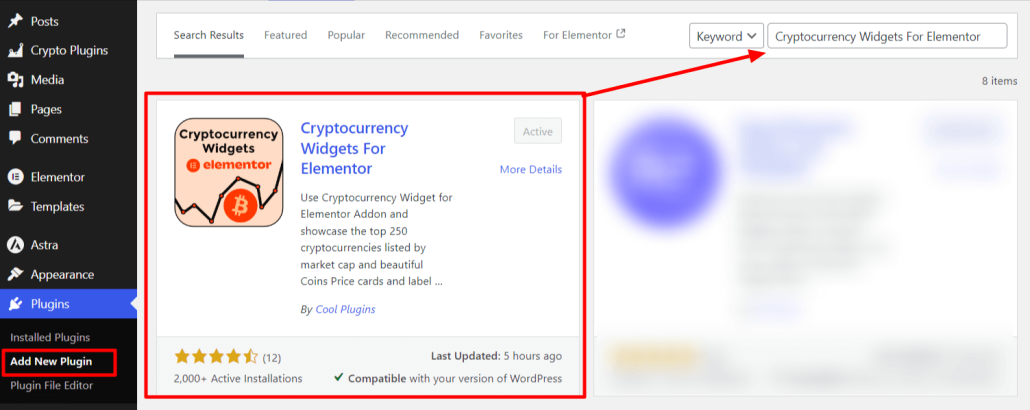
- Click Install Now, then Activate the plugin.
Make sure the Elementor plugin is also installed and activated. This plugin works inside Elementor.
How to Add Cryptocurrency Widget on Elementor Pages?
Once installed, follow these steps to add crypto widgets on your Elementor page:
Step 1: Open the page in Elementor where you want to add the widget.
Step 2: In the Elementor sidebar, search for “Cryptocurrency Widget” using the search bar.
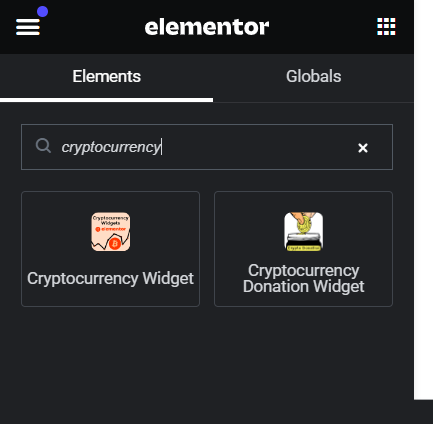
Step 3: Drag and drop the Cryptocurrency Widget onto your page. You’ll instantly see the default card layout appear.
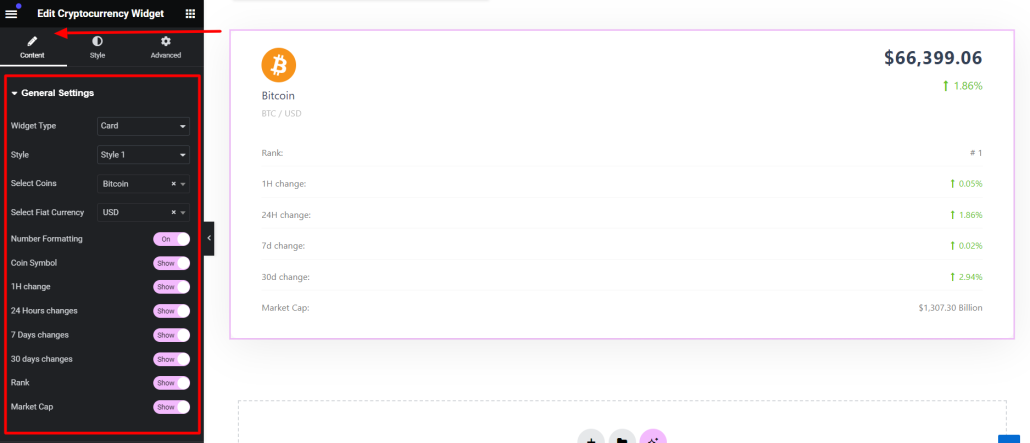
Step 4: Configure the Widget (General Settings)
Once the widget is added, you’ll see a panel with general settings to help you control what and how you want to display:
- Widget Type – Choose from different layouts like Card, Label, List, Gainer/Loser, or Advanced Table.
- Select Style – Pick a pre-designed style layout for your widget.
- Select Coin – Choose a coin like Bitcoin, Ethereum, Cardano, etc.
- Select Fiat Currency – Show prices in USD, EUR, INR, or your local currency.
- Number Formatting – Enable this to show large values in a friendly format like 1.5M or 2B.
- Hide/Show Options – Customize your widget by showing or hiding coin symbol, 1h/24h/7d/30d price changes, coin rank, and market cap.
Step 5: Style Your Widget (Style Settings)
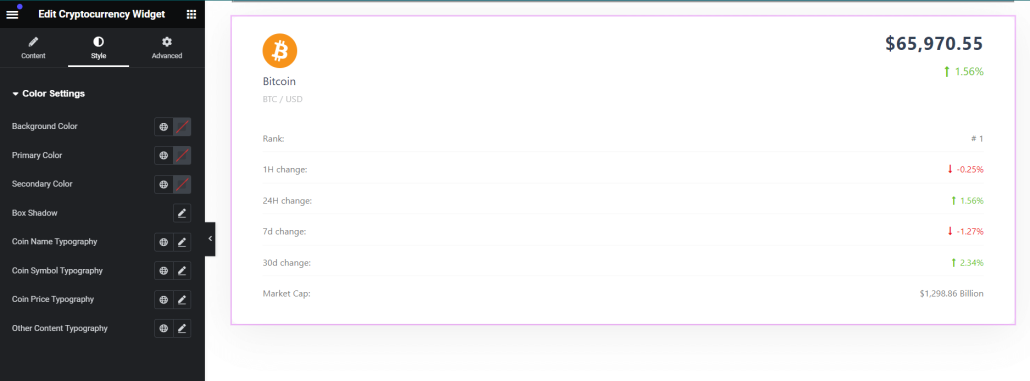
To make sure your widget matches your website’s design, go to the Style tab in the Elementor panel. You can find all Cryptocurrency Widget style settings inside the Style tab >> Color Settings.
From here, you can customize:
- Background Color – Change the widget background color to fit your section.
- Primary Color – Set the color for highlighted text (like coin names and prices).
- Secondary Color – Set color for regular content and labels.
- Box Shadow – Add shadows for a 3D effect or cleaner separation.
- Typography Settings – Customize fonts for:
- Coin Name
- Coin Symbol
- Coin Price
- Other info (like change % or market cap)
Available Cryptocurrency Widget Layouts
Cryptocurrency Widget comes with five different layouts for displaying cryptocurrency prices:
1. Coins Price Card: Display coins in a stylish card format with options to show/hide data like symbol, changes, rank, and market cap.
2. Coins Price Label: Show compact price labels within your content; you can choose to display or hide 24h changes.
3. Coins List: Create a custom or top coin list with optional 7-day chart and 24h change visibility.
4. Top Gainer/Loser: Highlight the top-performing and lowest-performing coins from the last 24 hours with 24h change toggle.
5. Advanced Table: Display multiple coins in a detailed, table-style format for better data comparison.
How to Add Cryptocurrency Donation Widget on Elementor Pages?
Step 1: Open the page where you want to show the donation box using Elementor.
Step 2: In the Elementor sidebar, type “Cryptocurrency Donation Widget” in the search bar.
Step 3: Drag the Cryptocurrency Donation Widget to your desired section. It will load with default content.
Step 4: Configure the Cryptocurrency Donation Widget Settings
General Settings
- Widget Type – Choose how you want the donation widget to appear on your page. You can select from Popup, Inline, or Simple List display styles.
- Wallet Address – By default, Bitcoin is selected as the first coin. You can change the coin, enter your wallet address, and add a wallet tag (if needed).
- Add Item – To accept donations in more coins or through MetaMask, click on the + Add Item button to add additional wallet addresses.
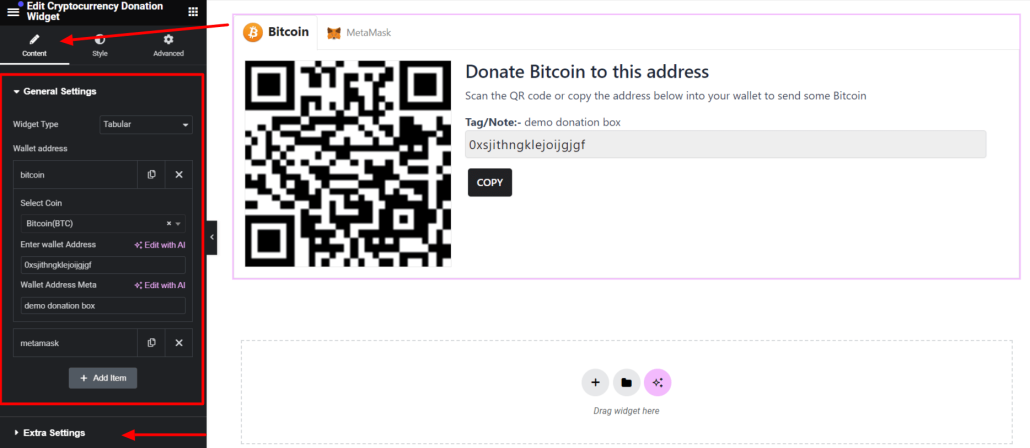
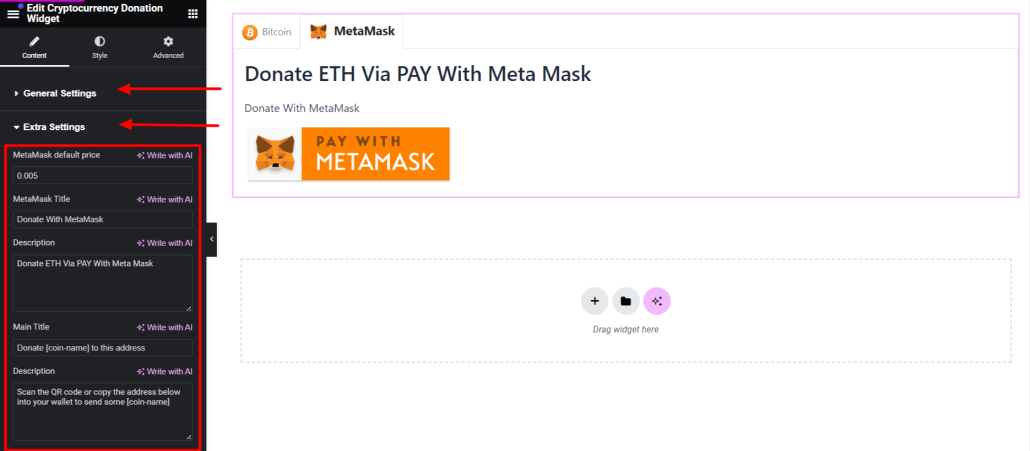
Extra Settings
- MetaMask Default Price: Set the default donation amount that will appear when users open the MetaMask donation option.
- MetaMask Title: Enter a custom title to display above the MetaMask donation section.
- MetaMask Description: Add a short description to explain or guide users about the MetaMask donation.
- QR Code Title: Set the main heading shown above the cryptocurrency QR code section.
- QR Code Description: Add a brief description or instructions for the QR code donation section.
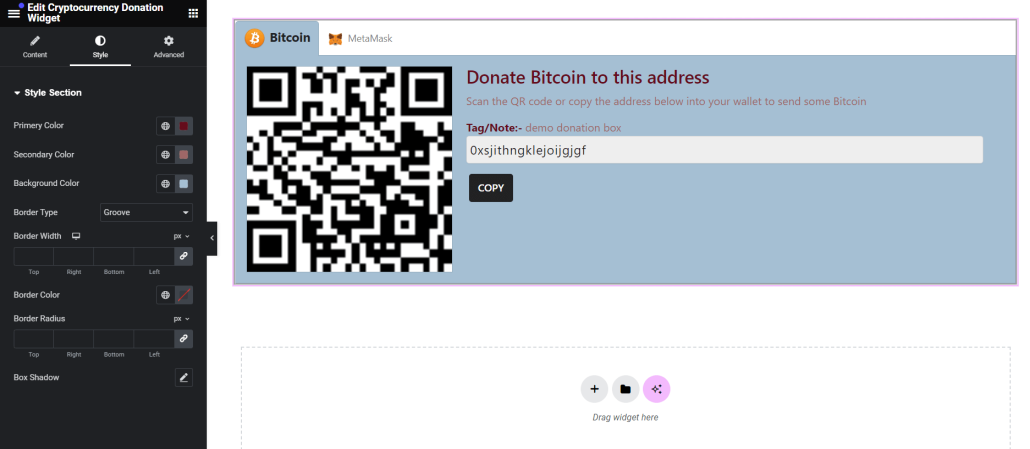
Step 5: Style Your Donation Box (Style Settings)
- Primary Color: Sets the text color for key elements such as the coin name and price.
- Secondary Color: Applies to all other text elements that are not highlighted.
- Background Color: Choose the background color for the widget.
- Border Type: Select the style of the border (solid, dashed, dotted, etc.).
- Border Width: Define the thickness of the border.
- Border Color: Choose the color of the border.
- Border Radius: Set the roundness of the widget’s corners.
- Box Shadow: Add a shadow effect to the widget for a more polished look.
Available Cryptocurrency Widget Layouts
Cryptocurrency Donation Widget offers three layout styles to display cryptocurrency donation options:
- Popup Box
Shows a donation button. When clicked, it opens a modal with wallet options and QR codes. - Inline Box
Displays the full donation content directly on the page—ideal if you want users to see it right away. - Simple Wallet List
A minimalist list showing coin names and wallet addresses without QR codes.
Conclusion
Cryptocurrency Widgets For Elementor makes it easy to display live crypto prices and accept donations. With drag-and-drop widgets and support for over 250 coins, it’s a simple and effective solution for any Elementor site.
For more advanced features like live tickers, multi-currency tabs, and real-time calculators, try the Cryptocurrency Widgets Pro plugin, an enhanced version with even more powerful features.