The Coins MarketCap plugin includes multiple configuration options that allow you to control how cryptocurrency data appears on your website.
Follow the steps below to customize your crypto data:
- From your WordPress dashboard, navigate to Crypto Plugins > Coins MarketCap > Coin Settings.
General Settings
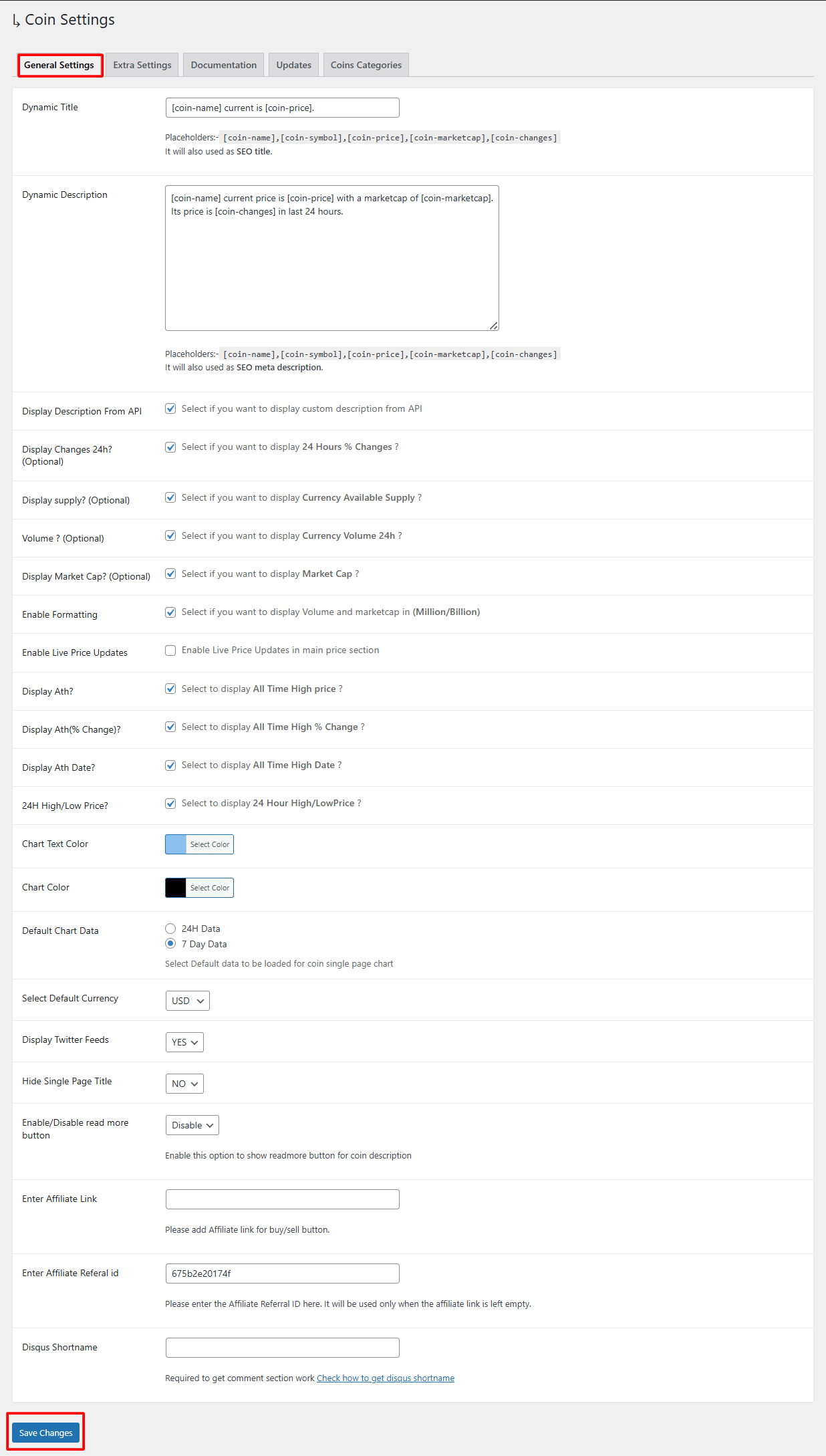
- Dynamic Title: Set a dynamic SEO title using placeholders like
[coin-name],[coin-price], or[coin-changes]. The plugin automatically applies this title to every individual coin’s single page. - Dynamic Description: Create an automatic SEO-friendly description using placeholders like
[coin-name],[coin-price],[coin-marketcap], or[coin-changes]. This description is applied automatically to each coin’s single page. - Display Description From API: Enable this option if you want to fetch the coin’s description directly from the API instead of adding a custom one.
- Display Changes 24h (%): Choose if you want to show the 24-hour percentage change on the single coin page.
- Display Supply (Optional): Enable to display the coin’s available supply.
- Volume (Optional): Show the 24-hour trading volume of the cryptocurrency.
- Display Market Cap (Optional): Enable the option to show the coin’s current market cap.
- Enable Formatting: Automatically format numbers into Million/Billion for better readability.
- Enable Live Price Updates: Enable this to update prices in real-time on the single coin page.
- Display ATH?: Show the coin’s All-Time High price.
- Display ATH (% Change)?: Show how much the price has changed since the All-Time High.
- Display ATH Date?: Display the date on which the coin reached its All-Time High.
- 24H High/Low Price: Show the highest and lowest price of the last 24 hours.
- Chart Text Color: Select the text color for the chart.
- Chart Color: Choose the main chart color.
- Default Chart Data: Choose whether the chart should load 24H data or 7-day data by default.
- Select Default Currency: Choose the default currency (USD, EUR, etc.) for displaying all coin values.
- Display Twitter Feeds: Enable or disable the Twitter news feed on the single coin page.
- Hide Single Page Title: Choose whether to show or hide the page title.
- Enable/Disable Read More Button: Enable the “Read More” button for long descriptions.
- Enter Affiliate Link: Paste your affiliate link to show a Buy/Sell button on single coin pages.
- Enter Affiliate Referral ID: Add your referral ID for platforms like Changelly. This will be used when no affiliate link is provided.
- Disqus Shortname: Add your Disqus shortname to activate comment sections under coin pages.
Extra Settings
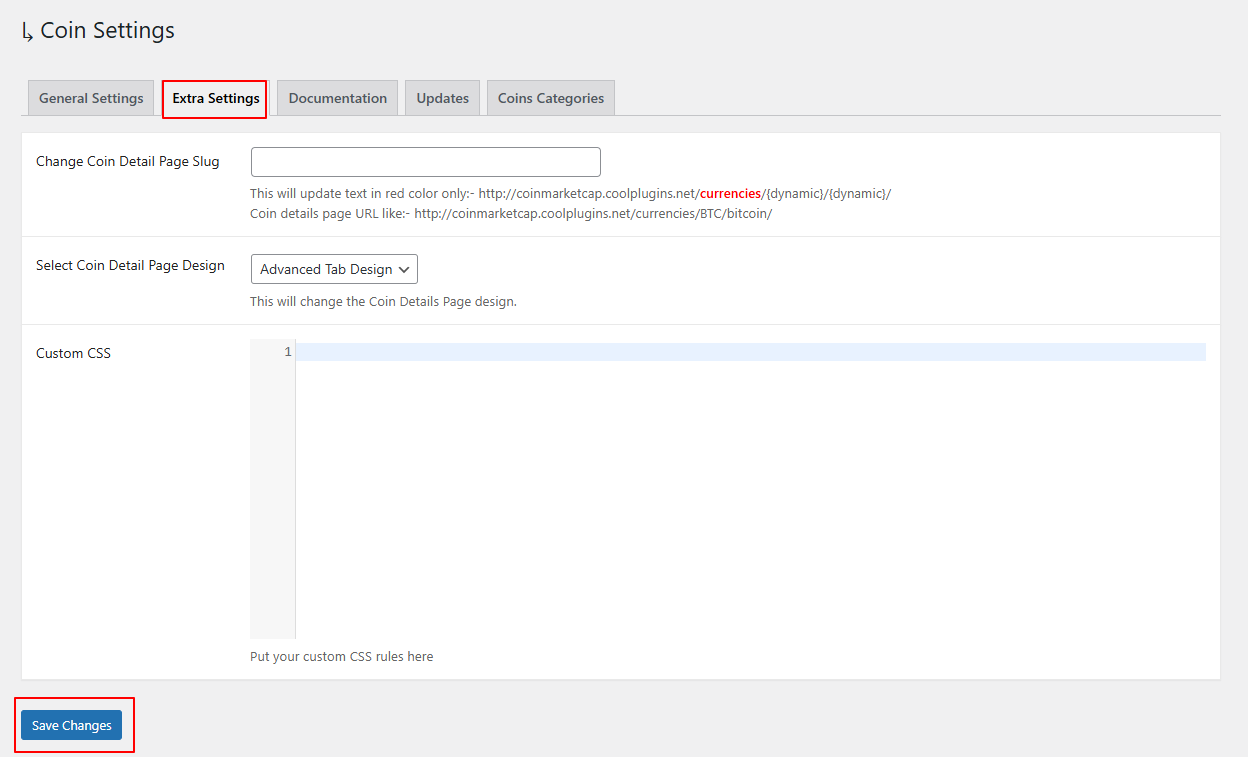
- Change Coin Detail Page Slug: Update the slug of the single coin URL.
- Select Coin Detail Page Design: Choose between available designs like “Advanced Tab Design” to change the layout style of single coin pages.
- Custom CSS: Add your custom CSS styling for more customization.
Documentation
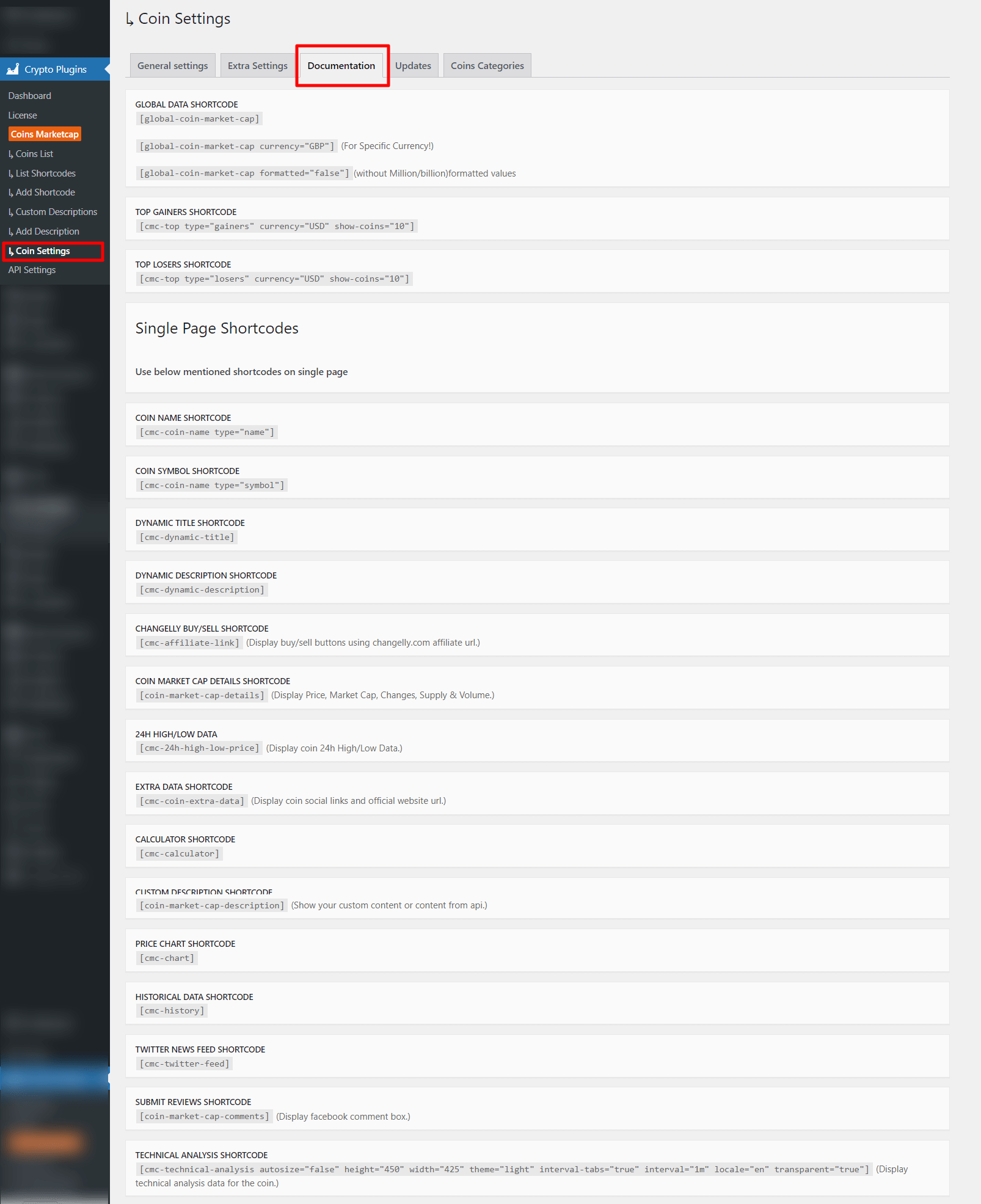
The documentation tab contains all available shortcodes for displaying global market data, top gainers/losers, or creating a custom single coin page layout.
Simply copy and paste these shortcodes into any WordPress page or post to create custom single coin pages.
Updates
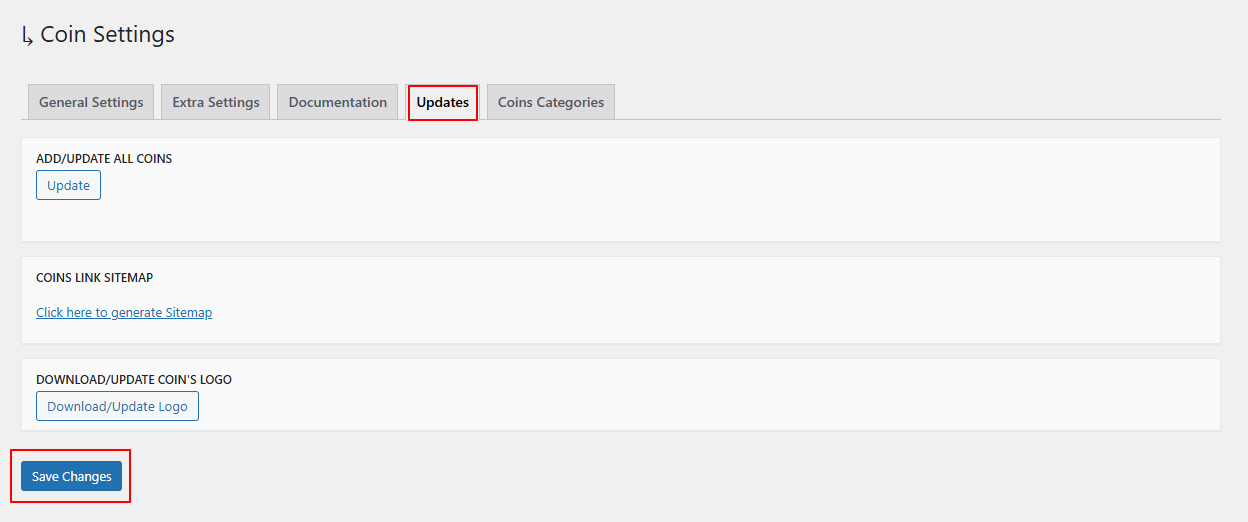
- Add/Update All Coins: Click this button to add or update coin data not available in the coins list.
- Coins Link Sitemap: Generate a sitemap containing all single coin page URLs for better SEO indexing.
- Download/Update Coin’s Logo: Fetch and update logos for all available coins.
Coins Categories
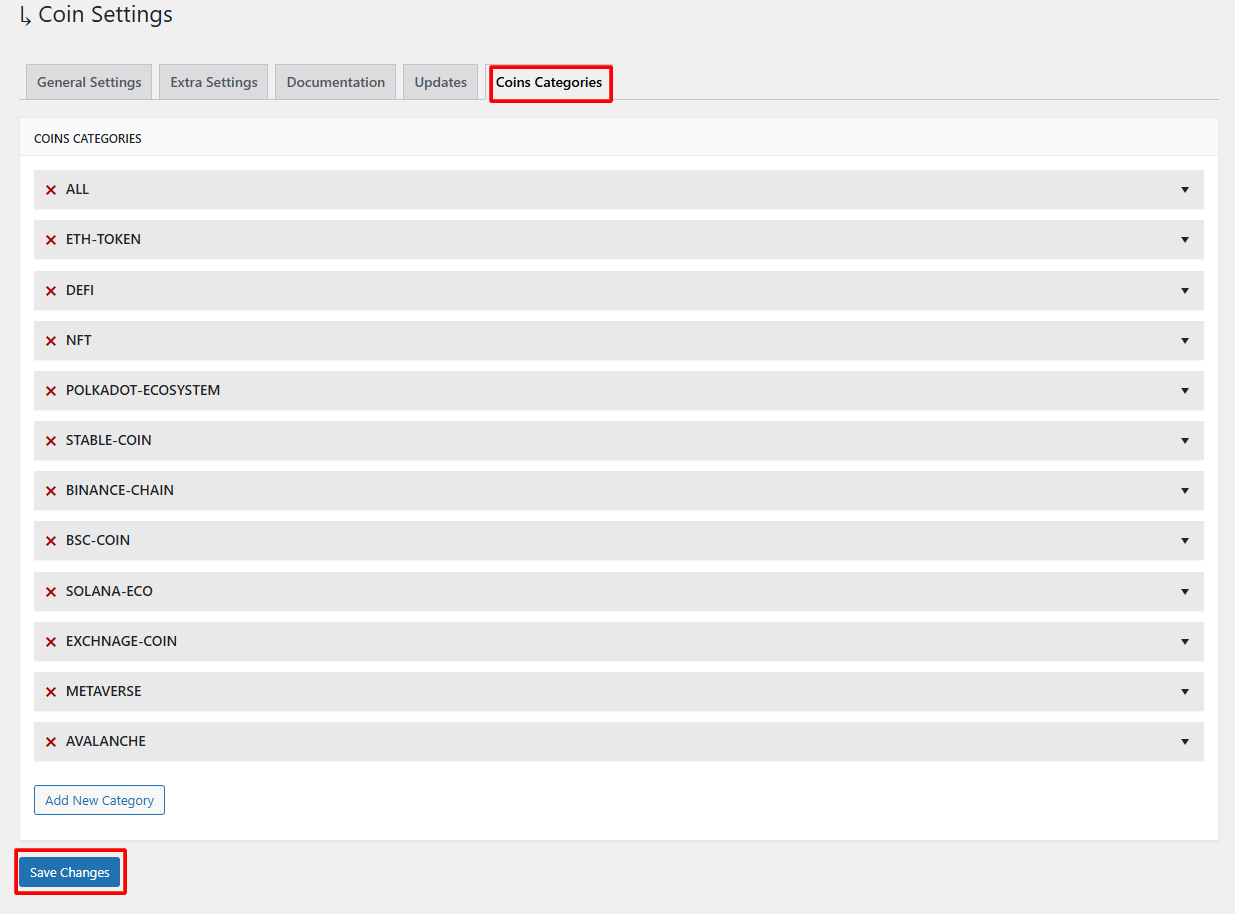
This tab lists all available cryptocurrency categories such as DEFI, NFT, Stable-Coin, Polkadot Ecosystem, BSC Coin, and more.
You can:
- View existing categories
- Expand categories to see included coins
- Add new categories
- Delete existing categories.