To continue receiving automatic updates and access support, you’ll need to manage your Coins MarketCap license properly. In this guide, learn how to manage your license key:
Where to Find Your License Key?
After purchasing the Pro version, your license key will be shared via:
- Order Confirmation Email – Check your inbox for an email with your order details.
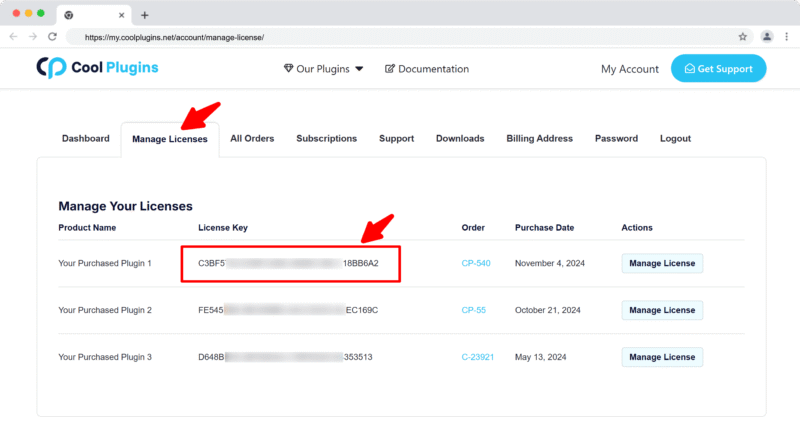
- Your Cool Plugins Account – Visit https://my.coolplugins.net/account/manage-license/
Once logged in:
- Go to the “Manage Licenses” tab.
- Find the plugin: Coins MarketCap.
- Your license key will be shown next to the plugin name
Where to Enter License Key?
- Go to your WordPress dashboard.
- Navigate to Crypto Plugins > License.
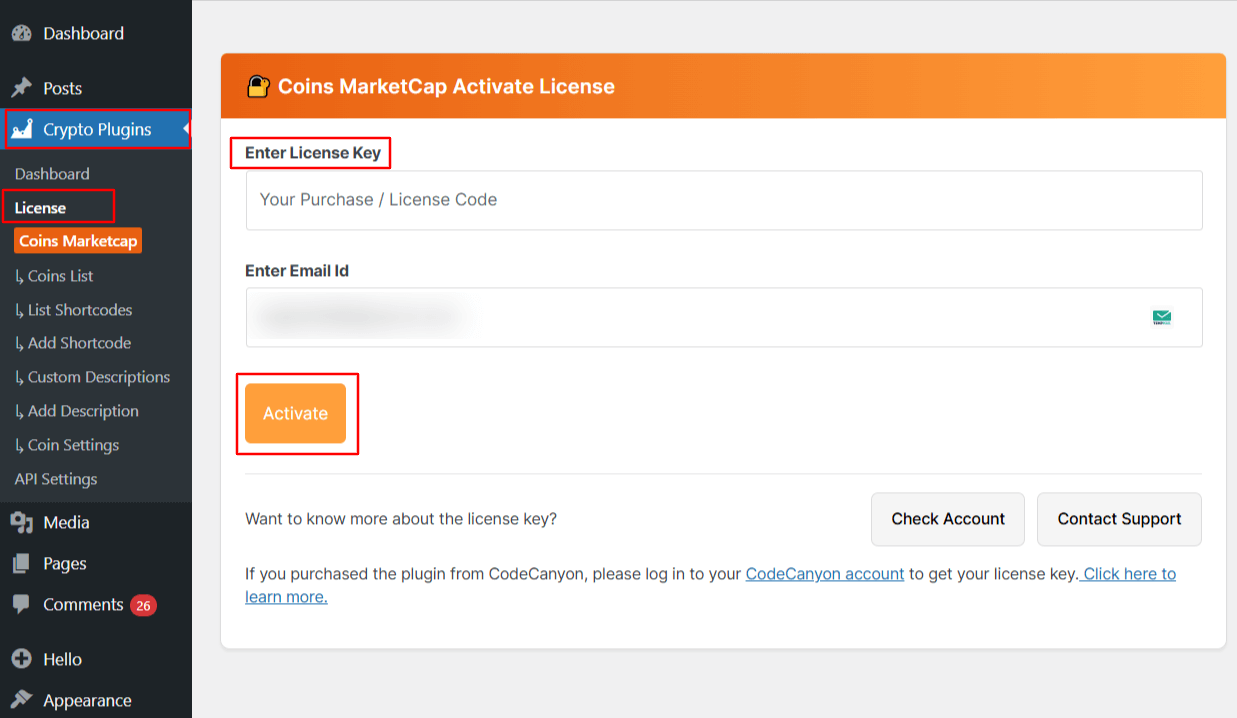
- Enter your license key and activate it.
⚠️ Troubleshooting Tips:
- Ensure no extra spaces are copied with your license key.
- If you see an error, verify the key hasn’t already been used on another site (unless you have a multi-site license).
- Still stuck? Contact our Support Team for assistance.
Move or Deactivate License
If you are moving your website (e.g., from staging to live) or want to use your license on a different domain, you must deactivate it first.
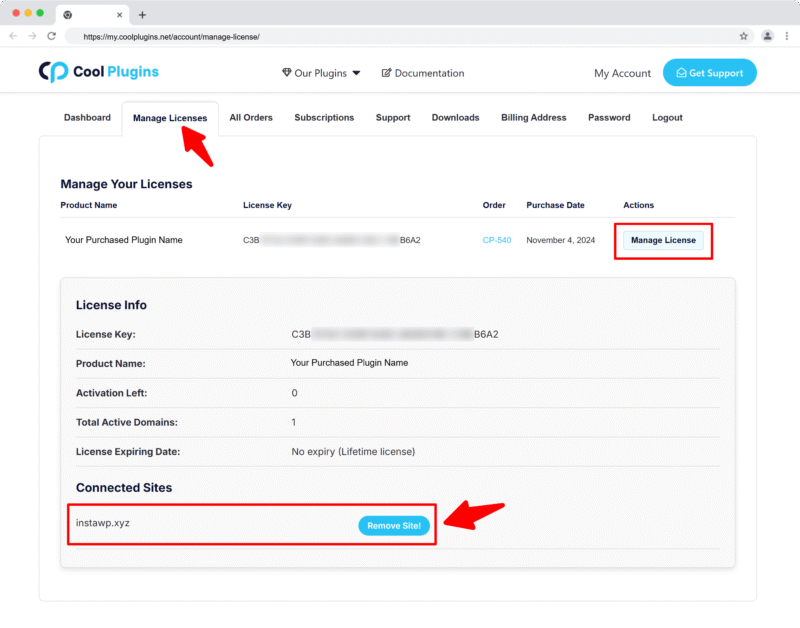
- Log in to your Cool Plugins account.
- Navigate to Manage Licenses.
- Locate your Coins MarketCap license.
- Click “Manage License” next to your key.
- Under Active Sites, remove the website you want to deactivate.
- The license is now available for use on another domain.
Important Notes
- Multi-site licenses: If you purchased a 5-site or 25-site license, you can have the license active on multiple websites simultaneously (up to your purchased limit).
- Domain changes: License validation is domain-specific, so any domain change requires reactivation
- Troubleshooting: If you encounter issues, our support team can help manually release your license.
Plugin Auto Updates & Subscription
If your license is active, you’ll receive automatic updates for all future plugin versions.
Cool Plugins offers both yearly and lifetime licenses:
- Yearly License: Updates and support are valid for 1 year. You’ll need to renew after that to continue receiving updates.
- Lifetime License: Receive updates and support forever.
Note: The plugin will continue to work after license expiry, but we highly recommend renewing your license to receive updates that may include compatibility fixes, new features, and security improvements.
Can I Disable Auto Renewals / Subscription?
If you purchased a yearly license, a subscription will be created and your payment method will be auto-charged every year.
To disable this:
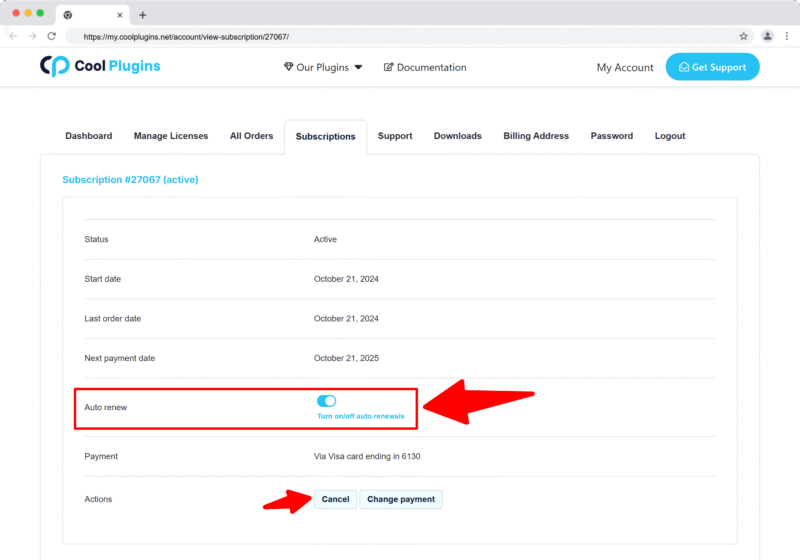
- Log in to your Cool Plugins account.
- Go to the Subscriptions section.
- Click Turn off auto-renewal for the desired subscription