
Plugin Compatibility
Q1: Is the Single Page Shortcodes feature compatible with Elementor or other page builders?
Ans: Yes, all shortcodes work with Elementor, Gutenberg, Classic Editor, Divi, WPBakery, and other page builders. You can insert these shortcodes inside any text widgets or blocks.
Q2: Do these shortcodes work with any WordPress theme?
Ans: Yes, the shortcodes are theme-independent and work with any WordPress theme. If your theme supports standard WordPress content blocks, the shortcodes will display normally.
Q3: Can I use these shortcodes on custom post types or custom templates?
Ans: Yes, you can add these shortcodes inside any custom post type, page template, or dynamic content area. The coin data loads as long as the page has a valid coin symbol assigned.
Q4: Do the shortcodes work with caching plugins?
Ans: Yes, but if your caching plugin is aggressive, some real-time data (like price updates) may not refresh instantly. Enabling “exclude this page from cache” ensures live data loads correctly.
Common Issues & Solutions
Q1: Why do some shortcodes show blank or partial data?
Ans: Blank data appears when the selected API does not provide certain fields for that coin. Switching API preference in the plugin settings or checking the coin’s availability on CoinGecko or CMC usually resolves this.
Q2: Why is my chart not loading or showing an error?
Ans: In most cases, the chart fails when the symbol is incorrect or unsupported by the chosen API. Verify that the symbol in the shortcode is correct and matches the plugin’s coin list.
Q3: The 24H high/low data is not updating, what should I do?
Ans: This issue is often caused by cached pages. Clearing your cache or disabling caching temporarily will force the plugin to load the latest coin data.
Q4: Why is my custom description shortcode showing default text?:
Ans: This happens when custom content isn’t added for that coin. Adding your custom text in the “Custom Description” field in the coin settings will immediately update the output.
License & Account Queries
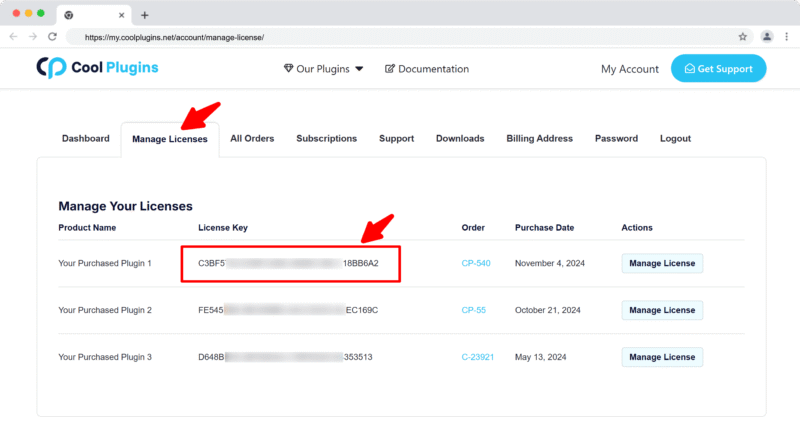
Q1. Where can I find my license key?
Ans. You can find your license key by logging into your account at my.coolplugins.net. Once logged in, navigate to the Manage Licenses section. There, you will see a list of your purchased plugins along with their license keys displayed next to each plugin name.
Q2. How do I activate my license on a site?
Ans. After installing the plugin, go to Crypto Plugins > License in your WordPress dashboard and enter your license key in the License section.
Q3. Can I move my license to a different website?
Ans. Yes, you can transfer your license from one website to another. But to do this, make sure to deactivate the license on your old domain first, and then activate it on the new website.
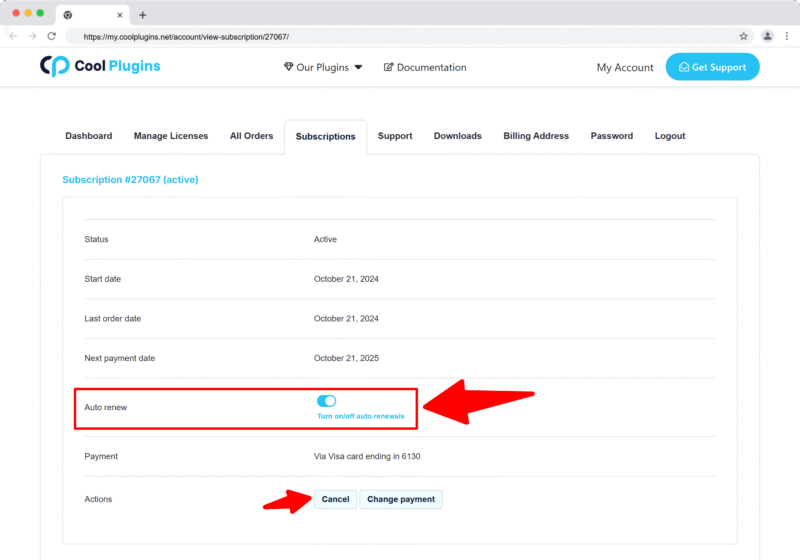
Q4. How can I cancel the auto-renewal of my license key?
Ans. You can cancel the auto-renewal at any time by logging into your account on our website. Go to the Subscriptions section, find your active license, and click on the Cancel Auto-Renewal button. This will stop future charges, but your license will remain active until the end of the current billing period.
Q5. How can I download my invoice?
Ans. To download your invoice, log in to your account on our website. Navigate to the Orders section. Find the order you want the invoice for, and click the Invoice button to download it.
Contact Support
Q1. I need help with an issue not listed here. How can I get support?
Ans. If you have a question or issue not covered in the FAQ, you can contact our support team by logging into your account at my.coolplugins.net and submitting a support ticket. Our team typically responds within 24–48 business hours to help resolve your issue.